 LibreChat
Agents
Learn how to create, customize, and leverage LibreChat's AI Agents - a powerful framework for building custom AI assistants with any model provider.
Agents: Build Custom AI Assistants
LibreChat's AI Agents feature provides a flexible framework for creating custom AI assistants powered by various model providers.
This feature is similar to OpenAI's Assistants API and ChatGPT's GPTs, but with broader model support and a no-code implementation, letting you build sophisticated assistants with specialized capabilities.
Getting Started
To create a new agent, select "Agents" from the endpoint menu and open the Agent Builder panel found in the Side Panel.
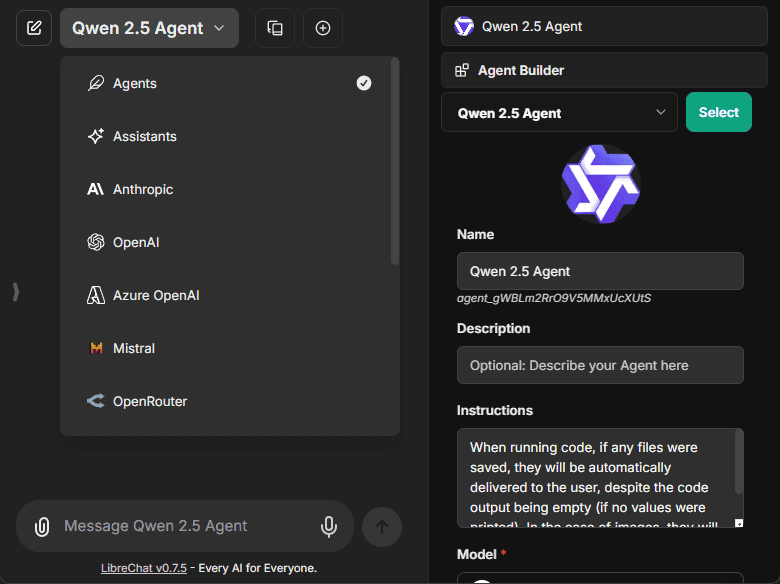
The creation form includes:
- Avatar: Upload a custom avatar to personalize your agent
- Name: Choose a distinctive name for your agent
- Description: Optional details about your agent's purpose
- Instructions: System instructions that define your agent's behavior
- Model: Select from available providers and models
- Conversation Starters: Up to four suggested prompts shown when a user starts a new chat with the agent
The Tools and Skills controls open searchable libraries for built-in capabilities, tools, MCP servers, Actions, and Skills. Select an item to configure it, then save the agent.
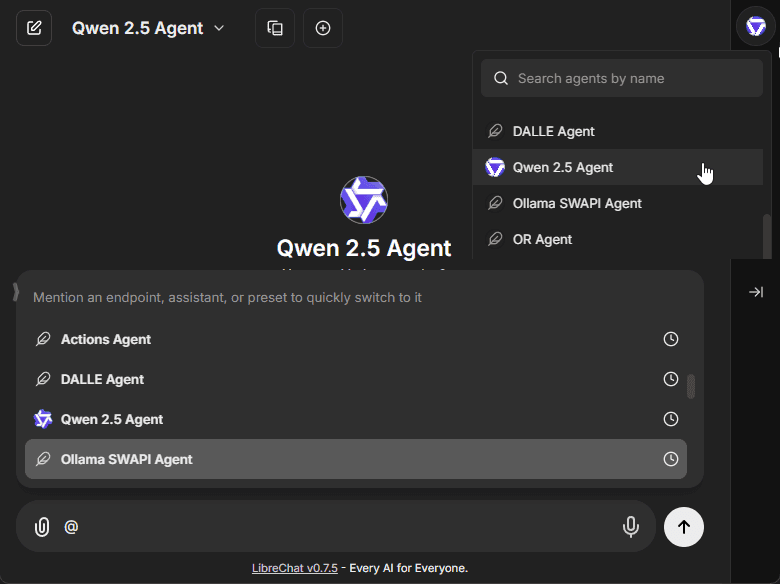
Existing agents can be selected from the top dropdown of the Side Panel.
- Also by mention with "@" in the chat input.
Tool Library
The Agent Builder keeps enabled items in separate Tools and Skills sections. Open Add tools to search the complete catalog or filter it by Official, Tools, MCP, or Actions. Made by you collects MCP servers and Actions you created, while Favorites keeps starred items available across agents. Each user can save up to 100 tool-library favorites.
Select an item to configure it without leaving the builder. The Create new menu appears only when the user has permission to create MCP servers or Actions. Removing a file-backed capability such as File Search, File Context, or Code Interpreter opens its file manager when attached files still need to be reviewed. A file-backed capability remains selected and is preserved on save while it still owns files; remove or reassign those files before removing the capability itself.
Skills use their own picker and can be selected individually or enabled as the complete accessible catalog. See Skills.
Operators can also use experimental Agent Plugins to bundle deployment Skills and MCP servers into startup-loaded packages.
Model Configuration
The model parameters interface allows fine-tuning of your agent's responses:
- Temperature (0-1 scale for response creativity)
- Max context tokens
- Max output tokens
- Image detail (
low,auto, orhigh) for native vision image inputs - Additional provider-specific settings
Agent instructions can use {{current_date}}, {{current_datetime}}, and {{iso_datetime}}. LibreChat resolves them from the server-captured start of the logical turn and keeps that timestamp stable across provider loops, Subagent initialization, and human-in-the-loop resume. The first two use the request time zone; {{iso_datetime}} remains UTC.
Recognized model-not-found and provider rate-limit failures render localized guidance. Other provider errors retain their useful provider text but omit LangChain troubleshooting URLs before the message is persisted. When model-bound content protection is enabled, its generic protected error still takes precedence.
Version History
Users with edit access can open Version History from the Agent Builder to inspect saved configurations in a timeline. Each entry shows when it was saved and summarizes its tools and capabilities. Restoring an earlier entry requires confirmation and replaces the current agent configuration with that saved state. Saving always applies the Agent's current changes, even when the resulting configuration matches the newest history entry and LibreChat does not add a duplicate entry.
Conversation Starters
Conversation starters give users a quick way to begin a chat with an agent. Each agent can store up to four.
- In the Agent Builder, find the Conversation Starters field.
- Type a prompt and press Enter, or select the + button. The input is disabled once four starters are added.
- Edit a saved starter in place, or select its X button to remove it.
- Save the agent.
When a user opens a new chat with the agent, the starters appear as buttons on the empty chat screen. Selecting one sends it immediately as the first message. If the agent has starters, they take precedence over any conversation_starters defined on the model spec in use. Starters also appear in the agent's Marketplace detail dialog.
Agent Capabilities
Note: All capabilities can be toggled via the
librechat.yamlconfiguration file. See docs/configuration/librechat_yaml/object_structure/agents#capabilities for more information.
Code Interpreter
When enabled, the Code Interpreter capability allows your agent to:
- Execute code in multiple languages, including:
- Python, JavaScript, TypeScript, Go, C, C++, Java, PHP, Rust, and Fortran
- Process files securely through the LibreChat Code Interpreter API
- Run code without local setup, configuration, or sandbox deployment
- Handle file uploads and downloads seamlessly
- More info about the Code Interpreter API
- Powered by the open-source code-interpreter service (self-hosted)
When every required Code Interpreter file from a conversation fails to restore into the current sandbox, LibreChat stops the Agent before invoking the model and asks the user to reattach the files. This prevents the run from continuing with stale or inaccessible file references.
When conversation files share a Code Interpreter filename, LibreChat assigns distinct sandbox destinations and tells the Agent the resolved paths. See Seamless File Handling for collision behavior and the remaining multi-Agent private-file limitation.
Stateful Code Sessions
Stateful code sessions let an agent reuse a sandbox workspace across code executions. Files, installed packages, and working state usually carry over, which is useful for iterative analysis and multi-step file work. In the Agent Builder, the Stateful environment selector controls who shares that workspace:
- User workspace (recommended): the signed-in user's stateful agents share one workspace
- Agent + user workspace: each user gets a separate workspace for each agent
- Conversation workspace: each user gets a separate workspace for each conversation
Administrators can also configure named backends under statefulCodeSessions.environments. When present, the separate Execution environment selector chooses the managed Code API, operator-attached VM, or personal worker that owns the workspace; Deployment default uses the configured default executable environment. The sharing scope above remains independent of that backend choice.
When a deployment enables self-service workers, users with Code Environment management permission can open Settings > Code environments to pair an outbound @librechat/code worker on their own VM, select it in the Agent Builder, and revoke it later. Personal environments are owner-bound and use the same route for code, shell, and Programmatic Tool Calling. See Attached environments and pairing for the experimental setup and security model.
Within an attached workspace, Agents can list directories, read files, search text, author files, and run Bash through the selected worker. A per-Agent Git name and email can identify commits made there without supplying repository credentials. Deployments can limit new personal workers with statefulCodeSessions.principalWorkers.
When an attached worker advertises multiple workspace roots, the chat composer requires one selection for each attached environment used by the Agent or its Subagents. The conversation retains those selections across turns and approval resumes; LibreChat validates them against the live worker and blocks sending if a required workspace is missing or unavailable. A worker that advertises exactly one workspace is selected automatically for a new conversation. See Attached environments and pairing for details and current limitations.
New Agents initially use the signed-in user's Default stateful workspace from Settings > Data Controls > Code execution. The personal default is User workspace until changed. Updating this preference does not alter existing Agents or enable Stateful Code Sessions by itself. Administrators can restrict the available scopes with statefulCodeSessions.allowedEnvironments; when a saved personal default is no longer allowed, new Agents use the first permitted scope.
Highly experimental
Stateful Code Sessions are in an early experimentation phase. Their behavior, configuration, persistence characteristics, and underlying integration may change substantially. Do not treat the current implementation as a stable production contract.
This feature is opt-in. An administrator must add stateful_code_sessions to the agent capabilities and configure a dedicated stateful Code Interpreter route through LIBRECHAT_CODE_BASEURL_STATEFUL or named statefulCodeSessions.environments. Code Interpreter must be enabled on the agent, and Stateful code sessions must be turned on under its Advanced settings.
Stateful requests do not fall back to the normal stateless Code Interpreter endpoint when the dedicated URL is missing or incompatible. Stateful and stateless sessions also do not share live files or installed packages. The stateful workspace may reset at any time, regardless of its scope. In managed Code Interpreter environments, save important outputs under /mnt/data; an attached workspace is a separate worker-owned directory. Chat uploads are not copied into that attached directory by default. Do not otherwise rely on session state as durable storage.
When stateful create_file or edit_file tools author files during a response, the assistant message shows a compact Workspace changes row. Expand it to review the unique changed paths and download each file through LibreChat's authenticated file flow. This is a per-message record of files authored by those tools, not a durable snapshot of the complete workspace; stateless Code Interpreter outputs continue using the regular inline attachment interface.
For attached environments, the composer can expose Ask before changes, Accept edits, and Full access as a conversation-level Code approval mode. Availability is limited by the environment's administrator-defined permission schema; choosing a more permissive mode never overrides role grants, explicit tool rules, hooks, or sandbox boundaries. See Attached-environment tool permissions.
File Search
The File Search capability enables:
- RAG (Retrieval-Augmented Generation) functionality
- Semantic search across uploaded documents
- Context-aware responses based on file contents
- File attachment support at both agent and chat thread levels
File Context
The File Context capability allows your agent to store extracted text from files as part of its system instructions:
- Extract text while maintaining document structure and formatting
- Process complex layouts including multi-column text and mixed content
- Handle tables, equations, and other specialized content
- Work with multilingual content
- Text is stored in the agent's instructions in the database
- No OCR service required - Uses text parsing by default with fallback methods
- Enhanced by OCR - If OCR is configured, extraction quality improves for images and scanned documents
- Uses the same processing logic as "Upload as Text": OCR > STT > text parsing
- More info about OCR configuration
Note: File Context includes extracted text in the agent's system instructions. For temporary document questions in individual conversations, use Upload as Text from the chat instead.
Model Context Protocol (MCP)
MCP is an open protocol that standardizes how applications provide context to Large Language Models (LLMs), acting like a universal adapter for AI tools and data sources.
For more information, see documentation on MCP.
Agents with MCP Tools
- Configure MCP servers in your
librechat.yamlfile - Restart LibreChat to initialize the connections
- Create or edit an agent
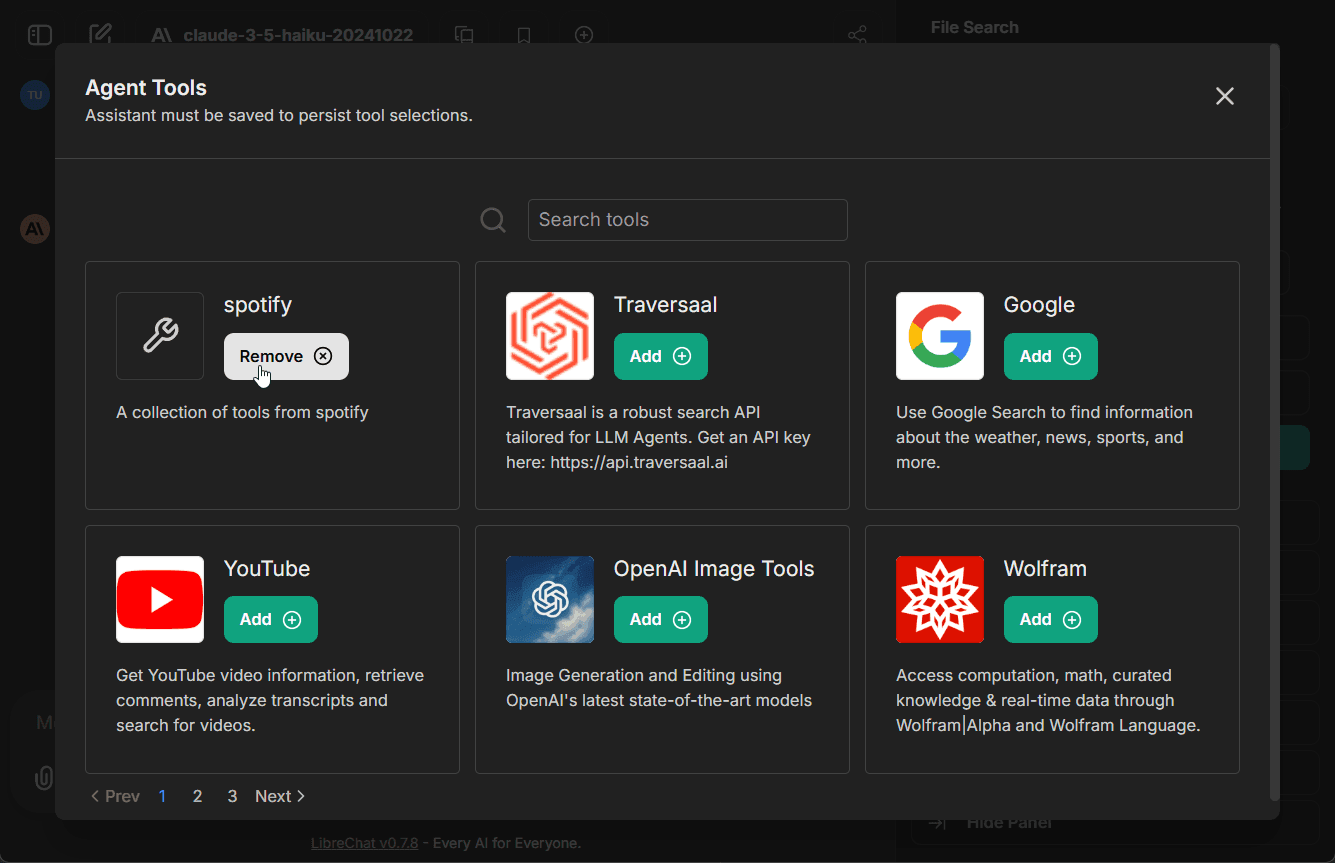
- Open Add tools in the Agent Builder and select MCP
- Select the MCP server(s) you want to add; each server appears as a single entry
- Save your changes to the agent
In this example, we've added the Spotify MCP server to an agent.
Managing MCP Tools
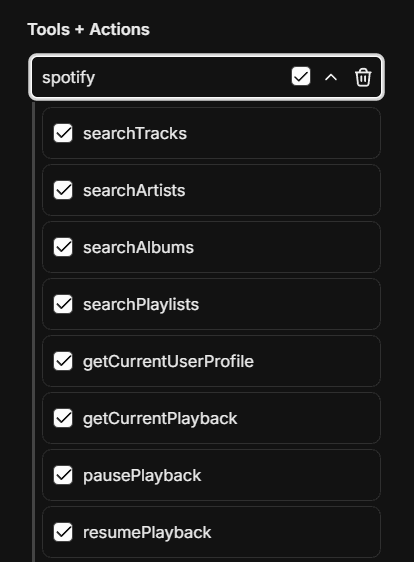
Once an MCP server is added to an agent, you can fine-tune which specific tools are available:
- After adding an MCP server, expand it to see all available tools
- Check/uncheck individual tools as needed
- For example, the Spotify MCP server provides ~20 tools (search, playback control, playlist management, etc.)
- This granular control lets you limit agents to only the tools they need
Request-scoped servers that use {{LIBRECHAT_BODY_*}} cannot enumerate tools until a chat run supplies those values. Agent Builder therefore shows one runtime-tools selection for the complete server instead of per-tool toggles; clearing that selection detaches the server. After OAuth, LibreChat keeps the authorization and waits until the first eligible run to connect.
If an Agent explicitly selects MCP tools but none can be resolved when a run starts, LibreChat stops the run with connection and access guidance instead of silently continuing without them. Reconnect or authenticate the server, verify tool access, and retry the run.
Learn More:
Deferred Tools
Deferred tools allow agents to have access to many MCP tools without loading them all into the LLM context upfront. Instead, deferred tools are discoverable at runtime via a Tool Search mechanism.
This is especially useful when an agent has access to many MCP servers with dozens of tools—loading them all would consume a large portion of the context window and degrade response quality.
How it works:
- Tools marked as "deferred" are excluded from the initial LLM context
- A
ToolSearchtool is automatically added, allowing the LLM to discover and load deferred tools on demand - Once discovered, the tool is available for the rest of the conversation
Configuring deferred tools:
- Open the Agent Builder and add MCP tools
- Click the dropdown on any MCP tool
- Toggle "Defer Loading" — deferred tools show a clock icon
Note: The deferred_tools capability is enabled by default. It can be toggled via the librechat.yaml agents configuration.
Activity Groups
Activity groups collapse each contiguous block of Agent reasoning and tool calls under a generated one-line header, making long runs easier to scan. Administrators enable them with activityLabel and can use a faster model, another configured endpoint, a custom prompt, and per-run limits. Header generation is a separate model call whose tokens and cost are recorded. See Agent Activity Groups.
Administrators can independently enable activityPhaseLabel to wrap two or more logical activities in a collapsed parent summary before the final answer. This gives long runs a higher-level outline while preserving each child activity. Phase summaries use their own model, endpoint, prompt, and per-run cap, with fallback to the activity-label and run settings.
As soon as a contiguous run contains at least two completed labeled tool groups, LibreChat folds them into the same phase-card surface even before an optional phase summary arrives. The newest completed child label acts as the interim header while live reasoning and the tool call still in progress remain outside the fold. Loaded history uses the same grouping, and a later server-generated phase summary replaces the interim header without closing a card the reader opened.
When Smooth Streaming is enabled, a newly generated parent summary smoothly folds the visible activities into the collapsed group. Loaded history does not replay this transition, and LibreChat respects the device's reduced-motion preference.
Short progress text remains inside its parent phase. When the Agent begins a substantial answer, LibreChat closes the phase before that text so the user-facing result stays outside the collapsed summary. One run can create multiple parent phases when later reasoning or tools begin another logical activity block. Persisted phase boundaries are rebased when malformed or omitted content parts are compacted, so the grouping remains aligned after reload.
Files produced inside a phase remain visible in a media row beneath the collapsed card instead of being hidden inside it. Markdown image references using a bare filename, /mnt/data/..., or sandbox: path resolve to matching turn attachments. A file is omitted from the media row only when an inline image outside the collapsed phase resolves successfully, preventing duplicates without trusting broken references.
Generic Agent and MCP tool cards distinguish Preparing (before SDK handoff, which may include approval or other waiting) from Calling (SDK handoff to result). Completed cards show both intervals; the call interval is not necessarily the upstream MCP or ClickHouse execution duration. Earlier saved messages and specialized Code, Bash, file, and memory cards retain a clearly labelled Total elapsed run-step duration. Stopped, cancelled, failed, and completed steps retain distinct statuses, including after a conversation reload.
While a tool is running, expanded Bash, Execute Code, and File Authoring detail panes follow streamed commands, code, or preview content to the bottom. Scrolling upward pauses that follow behavior so the current reading position is preserved.
Bash output renders as terminal-style text. Long output is collapsed to its last 15 lines, where errors usually appear; use Show more and Show less to expand or collapse it, and the Copy button to copy the output. A command that printed nothing shows No output. For commands run in an attached workspace, a failed command is marked with its reason (exit code N, terminated by a signal such as SIGKILL, or timed out), and stderr is styled separately from stdout. A finished command is labelled Ran command, and a tool group that contains a single call opens directly to that call's details.
Live Reasoning Labels
Live reasoning labels replace a generic Thinking or Thoughts heading with a short orientation that evolves as sufficiently long top-level reasoning streams. The label updates the existing reasoning heading in place; it does not add or reorder message parts.
The latest live reasoning label and response timer shimmer while generation is active. Settled reasoning, older sibling responses, and labels no longer at the live tail remain static.
Administrators enable this with reasoningLabel and can choose a separate model, endpoint, prompt, update thresholds, and per-run call cap. Each revision is an additional model call whose tokens and cost are recorded. See Live Reasoning Labels for defaults, routing precedence, and privacy considerations.
Tool Intent Labels
Tool intent labels replace generic live tool statuses with a short description written by the model for that specific call. Administrators must add the opt-in tool_intents agent capability. Native tools use labels automatically; in the Agent Builder, expand an MCP server and turn on Intent label for individual tools or the full server.
For model specs, describeIntent can enable every eligible tool or select resolved tool IDs. Intent fields add to the tool schema sent to the model, so selective enablement can reduce schema-token overhead.
Intent labels do not apply to programmatic-only MCP tools because calls made inside sandbox code do not render individual tool cards. An expanded programmatic execution instead shows a compact live trace of its inner calls.
Programmatic Tool Calling
Programmatic Tool Calling (PTC) lets agents execute selected MCP tools from inside the Code Interpreter sandbox instead of calling each tool directly from the model. The model receives a Code Interpreter-backed orchestration tool, writes sandboxed code that calls generated tool functions, and can use loops, conditionals, retries, and result processing before returning an answer.
This is useful for multi-step tool workflows such as querying several resources, paginating through results, comparing outputs, or transforming tool responses before the agent explains them.
Configuring programmatic tools:
- Enable both
programmatic_toolsandexecute_codein thelibrechat.yamlagents capabilities. - Enable Code Interpreter on the agent.
- Add MCP tools, expand an MCP server, and toggle Programmatic for individual tools or for the full server. Programmatic tools show a code icon.
The Agent Builder keeps Programmatic toggles disabled until Code Interpreter is selected. Removing Code Interpreter immediately clears the agent's Programmatic selections. On create, update, duplicate, and version restore, the server also strips programmatic caller options whenever the execute_code capability or Code Interpreter tool is unavailable; this lets older inconsistent Agents be opened and corrected without preserving an unusable configuration.
Note: programmatic_tools is opt-in and is not included in the default agents capability list. PTC also requires a Code Interpreter deployment with the Tool Call Server component. At runtime, LibreChat intersects the current caller-capability projection with its trusted tool registry, so event data can narrow the available map but cannot grant a tool. Only active, registered programmatic tools can be called from the sandbox; unregistered calls are rejected.
Expand the Code Interpreter card during a programmatic run to see a terminal-style trace of each inner tool call, its argument preview, status, duration, and any failure. The trace is live for the current browser session and is not restored after a page reload.
Background Tool Calls
Background tool calls let an agent start a long-running eligible Code Interpreter, MCP, Plugin, or Action tool and keep working. The initial call returns immediately with a task reference. For a saved Agent, supported completions are delivered automatically in a follow-up continuation by default; check_background_task remains available for explicit status, control, artifact collection, and recovery.
check_background_task reports started_at and the current elapsed_ms while process-local work is running. After settlement, it also reports settled_at and freezes elapsed_ms at the completed duration. A terminal result recovered from durable storage may include settled_at without a start time or elapsed duration when the original process-local dispatch timestamp is unavailable.
To use this feature, an administrator must add the opt-in run_in_background agent capability. Then configure the eligible tools in the Agent Builder:
- Code Interpreter: Enable Code Interpreter on the agent. Code execution and shell commands become background-eligible by default; turn off Background execution in its tool settings to opt out.
- MCP: Open an MCP server and mark individual tools, or the full server, as Background.
- Plugin tools: Open an eligible tool and turn on Background execution.
- Actions: Turn on Background execution for an Action to opt in every eligible operation in that Action. OAuth Actions do not expose this switch. An operation is also excluded when its own schema already defines a
run_in_backgroundparameter, avoiding a collision with LibreChat's dispatch flag.
These settings allow background execution but do not force it. The model decides per call whether to run an eligible tool in the background.
In LibreChat chat, when background code finishes, its stdout and generated files appear on the original code call rather than the later poll. Generated files are also persisted for subsequent turns. Automatic continuations present the completed work in a collapsible wake-up task card linked to the original task.
When the server starts that continuation after the preceding foreground run has already finished, the open conversation attaches to the new generation and refreshes the completed task output without requiring a reload.
Automatic completion wakeups are enabled unless an administrator sets endpoints.agents.backgroundTasks.completionWakeups: false, which restores poll-only behavior. The host may batch several eligible content-only completions into one continuation. Tasks that produce a live artifact still require polling on the process that owns the run.
Administrators can also opt in to owner-scoped cancellation with endpoints.agents.backgroundTasks.ordinaryToolCancellation: true. The task reports that cancellation was requested until the underlying invocation settles, and its capacity remains reserved during that interval. Cancellation is cooperative: a tool that ignores the abort signal may still complete successfully. The control applies to ordinary process-local background tools, including attached Bash, but not independently owned detached Subagents.
Only eligible tools expose the setting. Ordinary background execution is process-local and does not survive the loss of its worker process. Once a content-only terminal result is persisted, however, automatic delivery is durable and may continue on another replica. The process-local registry bounds running tasks and retained result payloads per conversation, user, and process; it evicts settled work when safe and returns a scoped capacity result when pending processing prevents safe eviction. If an invocation ignores cancellation, LibreChat stops renewing its producer lease after a one-minute post-abort grace period and retires automatic completion delivery without falsely marking uncertain external work as timed out. Detached Subagents use a separate durable task and transcript path with Redis-routed live controls; see Detached Subagent Threads.
Ask User and Tool Approval
The Ask User tool lets an agent pause a run to request missing information, present choices, or confirm how to proceed. One call can group up to four related questions. LibreChat presents one question at a time with Back, Next, and clickable progress steps; answers remain available while moving between steps, and single-select answers advance automatically without submitting. Submit appears on the final step after every question has an answer, while Skip declines the whole batch from any step. Each question accepts a free-form answer or the agent's single- or multi-select choices. While the model prepares the call, LibreChat streams the questions into a progress card; the interactive form replaces it when ready. After one submission, the same run resumes with the complete answer map. Add Ask User from the Tools marketplace; administrators can remove the default ask_user_question capability to hide it.
Collapsing a multi-question card returns the composer to its normal steer-or-queue mode while the paused card remains in the thread. The card can still be expanded, answered, skipped, or stopped. A single-question pause continues to use the focused composer answer mode.
Submitted answers are persisted with the resume action, so stopping while the resumed run initializes does not discard accepted answers.
After a question record settles, it collapses to a one-line tool entry by default so long answers do not dominate the transcript. Open it to review the questions and preserved line breaks in the answers. The existing Auto-expand tool details preference also controls this settled view; the live form remains open while input is still required.
Each question accepts an optional heading up to 80 characters, question text up to 2,000 characters, optional supporting context up to 4,000 characters, and up to 12 choices. Choice labels are limited to 280 characters, choice values to 500 characters, and each submitted answer to 16,000 characters.
Administrators can also require review before matching tool calls run. Depending on the tool, users can approve, reject, edit arguments, or respond directly. Paused runs are checkpointed so they can resume after the decision, including on another replica when the default MongoDB checkpointer is used. Deployment-wide tool approval is disabled by default, while an Agent using an attached Code environment receives the ask-by-default safety policy unless an administrator explicitly disables it. See toolApproval and checkpointer.
While the composer review panel is open for a pending approval, the corresponding thread card shows the request as a record rather than duplicating decision buttons. Review the calls in the panel above the message box and select Continue. Collapsing the panel from the composer chip restores the thread card's controls with your decisions retained; reopening it hands review back to the panel. Cards for other actions keep their own controls.
Skills
Skills let agents load reusable instructions from SKILL.md definitions. They can be selected manually from chat with $, automatically discovered by the model through the skill catalog, or always applied on every turn. The Agent Builder can also enable standalone runtime authoring: an agent may create a Skill without receiving the existing catalog, or edit selected Skills when the user has the corresponding permission.
For authoring, invocation, and access control details, see Skills.
Memory
The Memory tool lets an agent save, update, or delete structured user memories when the user explicitly asks it to remember or forget something. Memory must be configured for the deployment, allowed by the user's role and personalization settings, and enabled on the agent.
By default, an agent uses the user's shared personal memory pool. Turn on Keep memories separate for this agent to give it a private per-user, per-agent partition. The isolated agent will not see existing shared memories or memories created by other isolated agents. Users can filter the Memory panel by personal or agent-specific memories. Reading, creating, or updating an Agent partition requires current access to that Agent; deletion can still clean up a partition after its Agent has been removed. See User Memory.
Artifacts
The Artifacts capability enables your agent to generate and display interactive content:
- Create React components, HTML code, and Mermaid diagrams
- Display content in a dedicated panel beside the chat, which can be expanded to fullscreen or opened in its own browser window
- Configure artifact-specific instructions at the agent level
- More info about Artifacts
When enabled, choose one of three instruction modes:
- Normal: Adds the standard artifact instructions for React, HTML, SVG, Markdown, and Mermaid.
- shadcn/ui: Adds the standard instructions plus guidance for building interfaces with the shadcn/ui component library.
- Custom: Keeps artifact rendering enabled but injects no built-in artifact instructions, giving the agent's own instructions full control.
Configuring artifacts at the agent level is the preferred approach, as it allows for more granular control compared to the legacy app-wide configuration.
If you select Custom, include at minimum the basic artifact format in your instructions.
Here's a simple example of the minimum instructions needed:
When creating content that should be displayed as an artifact, use the following format:

:::artifact{identifier="unique-identifier" type="mime-type" title="Artifact Title"}

```
Your artifact content here
```

:::

For the type attribute, use one of:

- "text/html" for HTML content
- "application/vnd.mermaid" for Mermaid diagrams
- "application/vnd.react" for React components
- "image/svg+xml" for SVG images
Tools
Agents can also be enhanced with various built-in tools:
- OpenAI Image Tools: Image generation & editing with OpenAI image models
- Gemini Image Tools: Image generation and image-context editing using Gemini image models
- Stable Diffusion / Flux: Text-to-image generation
- Wolfram: Computational and mathematical capabilities
- OpenWeather: Weather data retrieval
- Google Search: Access to web search functionality
- Calculator: Mathematical calculations
- Tavily Search: Advanced search API with diverse data source integration
- Azure AI Search: Information retrieval from Azure AI Search indexes
- Traversaal: A robust search API for LLM Agents
Create an Agent with Image Tools
- Add the image tool credentials to
.env, such asIMAGE_GEN_OAI_API_KEYfor OpenAI Image Tools. - Restart LibreChat so the new environment variables are loaded.
- Select Agents from the endpoint menu.
- Open the Agent Builder from the side panel and create or edit an agent.
- Open the agent's Tools list, select OpenAI Image Tools, Gemini Image Tools, Stable Diffusion, or Flux, then save the agent.
- Start a chat with that agent and ask it to generate or edit an image.
For the full image setup guide, including model variables such as IMAGE_GEN_OAI_MODEL, see Image Generation & Editing.
- Tools can be disabled using the
librechat.yamlconfiguration file:
Actions
With the Actions capability, you can dynamically create tools from OpenAPI specs to add to your Agents.
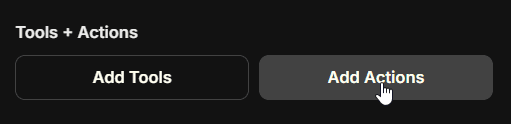
Clicking the button above will open a form where you can input the OpenAPI spec URL and create an action:
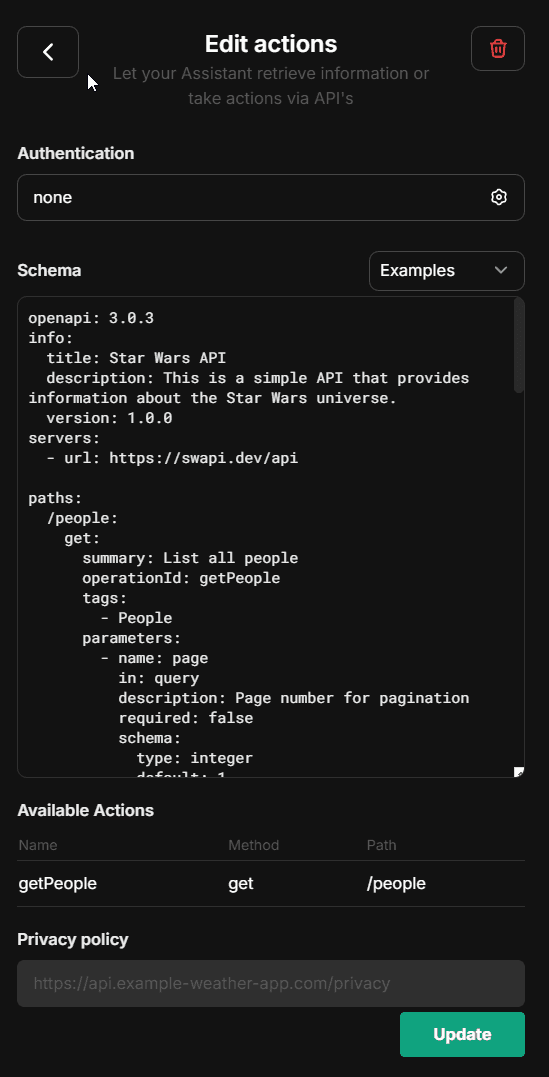
- Actions can be disabled using the
librechat.yamlconfiguration file: - Individual domains can be whitelisted for agent actions:
- Note that you can add add the 'x-strict': true flag at operation-level in the OpenAPI spec for actions.
If using an OpenAI model supporting it, this will automatically generate function calls with 'strict' mode enabled.
- Strict mode supports only a partial subset of json. Read https://platform.openai.com/docs/guides/structured-outputs for details.
Handoffs
Handoffs let a primary agent transfer a conversation to a specialist agent with the relevant context. In Advanced settings, open the orchestration section and add up to 10 handoff agents. Each configured handoff creates a transfer tool that the model can choose dynamically when the specialist's expertise is needed.
For each handoff, you can add a description that helps the model choose the right specialist. You can also provide passthrough instructions describing what content the primary agent should generate for the specialist and optionally rename the content parameter from its default, instructions. Handoffs are always available in the Agent Builder; unlike Agent Chain and Subagents, they do not require an endpoint capability to be enabled. Tool calls from reachable handoff agents remain structured in later turns, so providers receive valid tool-call history instead of flattened text.
Agent Chain
The Agent Chain capability enables a Mixture-of-Agents (MoA) approach, allowing you to create a sequence of agents that work together:
- Create chains of specialized agents for complex tasks
- Each agent in the chain can access outputs from previous agents
- Configure the maximum number of steps for the agent chain
- Note: Access this feature from the Advanced Settings panel in the Agent Builder
- Note: This feature is currently in beta and may be subject to change
- The current maximum of agents that can be chained is 10, but this may be configurable in the future
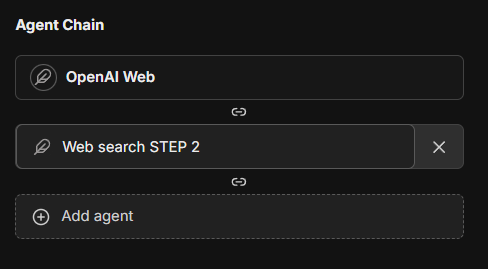
This feature introduces a layered Mixture-of-Agents architecture to LibreChat, where each agent takes all the outputs from agents in the previous layer as auxiliary information in generating its response, as described in the eponymous "Mixture-of-Agents" paper.
Subagents
Subagents let an agent delegate a focused task to an isolated child run or a saved Agent team. Each child gets isolated context and tool execution, then returns a compact result to the parent instead of filling the parent context with every intermediate step. Detached child work is also preserved as a navigable, view-only thread.
Subagents are different from Agent Chain: chain runs coordinate multiple agents as graph participants, while subagents are spawned by an agent as a tool call for scoped delegation. LibreChat preserves the structured tool-call history needed by reachable children and saved-team members across later turns while keeping unavailable tools out of the active run. For setup and limits, see Subagents.
Advanced Settings
Advanced settings for your agent (found in the Advanced view of the Agent form) outside of "capabilities."
Max Agent Steps
This setting allows you to limit the number of steps an agent can take in a "run," which refers to the agent loop before a final response is given.
If left unconfigured, the default is 25 steps, but you can adjust this to suit your needs. For admins, you can set a global default as well as a global maximum in the librechat.yaml file.
When a turn uses its complete step budget, LibreChat preserves the partial response and tool calls instead of replacing them with an error. The message offers Keep going, which starts a new turn with a fresh tool budget, and Answer now, which asks the agent to answer from the work already completed without more tools. Dismissing the notice affects only the current browser view.
Administrators can also bound streamed tool-call arguments and model delta events with Agent stream circuit breakers.
A "step" refers to either an AI API request or a round of tool usage (1 or many tools, depending on how many tool calls the LLM provides from a single request).
A single, non-tool response is 1 step. A singular round of tool usage is usually 3 steps:
- API Request -> 2. Tool Usage (1 or many tools) -> 3. Follow-up API Request
File Management
Agents support multiple ways to work with files:
In Chat Interface
When chatting with an agent, you have four upload options:
-
Upload Images
- Uploads images for native vision model support
- Sends images directly to the model provider
-
Upload as Text (requires
contextcapability)- Extracts and includes full document content in conversation
- Uses text parsing by default; enhanced by OCR if configured
- Content exists only in current conversation
- See Upload as Text
-
Upload for File Search (requires
file_searchcapability, toggled ON)- Uses semantic search (RAG) with vector stores
- Returns relevant chunks via tool use
- Optimal for large documents/multiple files
- Sub-optimal for structured data (CSV, Excel, JSON, etc.)
-
Upload for Code Interpreter (requires
execute_codecapability, toggled ON)- Adds files to code interpreter environment
- Optimal for structured data (CSV, Excel, JSON, etc.)
- More info about Code Interpreter
In Agent Builder
When configuring an agent, you can attach files in different categories:
- Image Upload: For visual content the agent can reference
- File Search Upload: Documents for RAG capabilities
- Code Interpreter Upload: Files for code processing
- File Context: Documents with extracted text to supplement agent instructions
File Context uses the context capability and works just like "Upload as Text" - it uses text parsing by default and is enhanced by OCR when configured. Text is extracted at upload time and stored in the agent's instructions. This is ideal for giving agents persistent knowledge from documents, PDFs, code files, or images with text.
Processing priority: OCR > STT > text parsing (same as Upload as Text)
Note: The extracted text is included as part of the agent's system instructions.
Sharing and Permissions
Agents use LibreChat's granular access control system. Each agent has its own Access Control List (ACL), and can be shared with specific users, groups, roles, or publicly, each at a chosen permission level.
Trusted services can also manage Agents, attached files, and Skills through the beta Agent Management API. Administrators bind each OIDC machine client to one existing LibreChat user and tenant; every request inherits that user's current role capabilities and resource ACLs rather than receiving separate administrative access.
Access Roles
When sharing an agent, the grantee is assigned one of three roles:
| Role | What the grantee can do |
|---|---|
| Viewer | Use the agent in conversations; cannot open the builder or see instructions, tools, or attached files |
| Editor | View + modify the agent's instructions, model, tools, and files |
| Owner | Full control: view, edit, delete, and re-share the agent |
The original author and administrators always retain full control regardless of the ACL.
Sharing an Agent
- Open the agent in the Agent Builder
- Click the Share button in the footer (visible when you're the author, an admin, or have been granted
SHAREpermission on that specific agent) - Search for users, groups, or roles in the people picker and assign each a role
- Optionally toggle Public to make the agent visible to everyone on the instance (requires the
SHARE_PUBLICfeature permission)
Agent cards and landing views show the configured support contact. When none is set, LibreChat can fall back to the first resolvable owner's display name, but does not expose the owner's email address unless it was configured explicitly as the support contact.
Conversation surfaces keep the Agent as the visible identity and do not fall back to its backing model or model-spec label.
For full details on principals, permission bits, and how ACLs compose with role-based feature permissions, see Access Control.
Agent Marketplace
The Agent Marketplace lets users browse the agents available to them. Open it from Agent Marketplace in the sidebar; the entry appears only for users whose role is allowed to use the Marketplace.
- Browse and search: Agents appear in a grid. Use the search field to find agents by name or description, and the category pills (such as Top Picks, All, or a specific category) to narrow the list.
- Sort: Use Sort by to order agents by Newest first (the default), Oldest first, Popular (most pinned), or By creator name.
- My agents: Turn on My agents to show only agents you created. Turning it on from Top Picks switches to All.
- Shareable views: Search, sort, and the My agents filter are kept in the page URL (
?q=,?sort=,?mine=1), so a filtered view can be bookmarked or shared.
Select an agent card to open its detail dialog, which shows the full description and the agent's contact, along with these actions:
- Pin or Unpin: Add the agent to, or remove it from, your pinned agents.
- Copy Link: Copy a link that starts a new chat with the agent.
- Start Chat: Open a new conversation with the agent.
- Try a conversation starter: When the agent has conversation starters, select one to open a new chat with that prompt already in the message input. It is not sent automatically, so you can edit it first.
Administrators can control access with the interface.marketplace setting and the role permissions described in Access Control.
Administrator Controls
Administrators have access to global permission settings within the agent builder UI:
- Enable/disable agent sharing across all users
- Control agent usage permissions
- Manage agent creation rights
- Configure platform-wide settings
In an unscoped single-tenant deployment, the first account created for the instance is an administrator. Tenant-scoped deployments do not auto-promote their first registered user; provision tenant administrators through a trusted administrative flow. If you need to add an administrator manually, you may access MongoDB and update the user's profile:
db.users.updateOne(
  { email: 'USER_EMAIL_ADDRESS' },
  { $set: { role: 'ADMIN' } }
)
The use of agents for all users can also be disabled via config, more info.
Feature-level permissions (who can use, create, share, or share publicly agents) are managed from the LibreChat Admin Panel on each role, including any custom roles. The interface.agents block in librechat.yaml can still seed defaults for the built-in USER role at startup, but the admin panel is the recommended way to edit them going forward.
User-Level Sharing
Individual users can:
- Share their agents with specific users, groups, or roles (if
SHAREis enabled for their role) - Make agents visible to everyone on the instance (if
SHARE_PUBLICis enabled) - Grant each recipient a different access level (Viewer / Editor / Owner)
- Re-share or revoke access at any time from the share dialog
Steering and Queued Messages
While an Agent is responding, you can send another message from the composer in either of two ways:
- Steer inserts the message into the current run at its next tool or agent step, so the agent can adjust its work before finishing.
- Queue holds the message and sends it as a normal follow-up turn after the current response completes.
For saved Agent conversations on a current server, ordinary queued follow-ups are stored in MongoDB. LibreChat preserves their FIFO order and carries their text, attachments, quoted excerpts, and manually selected Skills across browser disconnects, app restarts, and replica handoffs. Processing waits for the preceding response to settle before admitting the next turn. This durability is automatic and has no YAML or environment toggle; older servers and short startup windows without an active generation epoch retain the client-side compatibility queue.
Server admission is serialized within each conversation queue lane. If predecessor evidence or mixed-version ownership is ambiguous, LibreChat shows Awaiting reconciliation and blocks or fails the affected queued turn instead of guessing and starting it out of order.
Steer sooner asks the agent to take the message at the next safe point instead of waiting for the next tool step. If no answer text or tool activity is safe to keep yet, LibreChat waits through a short grace period, discards the silent or reasoning-only attempt, inserts the message, and restarts the model with that instruction. Once answer text can be kept, LibreChat stops at a provider-safe boundary, preserves the partial response, inserts the message, and resumes the same assistant response. A running tool call is not discarded or interrupted by steering; the message applies when that work reaches a safe boundary.
Use Stop to end active reasoning and request cancellation of a foreground tool call. Stop forwards cancellation to signal-aware foreground tools; detached background work keeps its independent lifecycle. Use the dedicated composer control, choose it from the send-button menu, or press Command/Ctrl + Shift + .. The action falls back to ordinary steering when the deployment cannot interrupt the active provider stream.
Under Settings → Chat, While generating, Enter will chooses the default action. The send-button menu can override that choice for an individual message, and Steer sooner on Enter makes Enter request that earlier safe point when steering is the default.
Files and quoted excerpts travel with steer, queue, and interrupt messages. Manually selected Skills remain staged for the next full turn instead of being attached to a mid-run steer.
Pending steers appear at the end of the streaming reply, where they will land, until the server inserts them into the run. Their receipt progresses from Sending to Delivered, then Steer sooner requested when an earlier safe point was requested, and finally Applied with a double checkmark at the inline message's bottom-right edge. Confirmed applied receipts remain visible after reload and in share or search views; uncertain or failed delivery never shows a confirming checkmark. Once acknowledged, the message menu can reclaim the steer for editing, convert it into a queued follow-up, or cancel it and restore its text and attachments to the composer. LibreChat avoids overwriting a newer draft; if the composer is no longer available, it preserves the reclaimed message in the queue instead. A failed steer remains available to retry, edit, queue, or remove.
Queued follow-ups appear in a list above the composer. Each one can be edited (Edit message), removed (Remove message), sent right away with Send now, or reordered by dragging its handle or pressing the arrow keys on it. Queued follow-ups can also be converted into a steer while the run is still active or escalated with Steer sooner. In-flight steers offer the same escalation when they are still waiting for a tool boundary. Removing a server-backed queued message first cancels its durable source, then restores it to an empty composer when possible. If the preceding response is aborted or fails, LibreChat marks the affected queued turn as failed for review instead of silently sending it.
A conversation can have up to 100 active queued turns. Each queued turn accepts up to 16,000 characters and 10 files. Separately, one active run accepts up to 10 pending steers; each steer can include up to 10 files and is limited by STEER_MAX_LENGTH. Steer sooner continues to use the live steering path rather than moving a queued turn to the front of the durable FIFO lane.
Redis-backed multi-replica deployments negotiate generation protocol v2 automatically. Follow the generation protocol compatibility guidance when upgrading from a release older than v0.8.8-rc1.
Notes
- Instructions, model parameters, attached files, and tools are only exposed to the user if they have editing permissions
- An agent may leak any attached data, whether instructions or files, through conversation, so make sure your instructions are robust against this before granting Editor/Owner access or making the agent public
- Only original authors, administrators, and grantees with Owner permission can delete shared agents
- Agents are private to authors unless shared
Agent Event Delivery
LibreChat includes a source-neutral delivery layer for asynchronous Agent events. Deployment-owned adapters can normalize a verified webhook, queue message, MCP event, channel event, or internal product event into a new Agent run (fire), a new turn on an existing saved Agent and branch (continue), or a mutation of an active run (steer). Adapters remain responsible for authenticating their native source, sanitizing payloads, and selecting trusted targets before enqueueing.
The beta Agents API event endpoints expose authenticated fire, continue, and steer admission to Remote Agents API keys. External systems can bind a source actor to a direct child Agent and continue that actor across events without an additional feature toggle. LibreChat derives the user, tenant, and source identity from the API key, enforces Agent access and content filters, and requires an idempotency key. This is not an unauthenticated general-purpose webhook receiver; provider-specific adapters must still verify native webhook signatures before calling it.
The experimental Scheduled Chats feature is LibreChat's first built-in producer for this layer. It creates recurring fire deliveries for saved Agents and is disabled until an administrator opts in. Detached Subagents automatically use idempotent continue delivery to wake a saved parent Agent after a child settles; cancelled children and ephemeral parent Agents are excluded.
MongoDB stores bounded versioned envelopes, idempotency keys, ordering lanes, leases, retry history, durable receipts, and dead letters. Workers use at-least-once delivery with fenced claims and bounded exponential backoff; successful receipts expire after 90 days, while dead letters require an explicit trusted requeue. Fire deliveries create a new conversation. Continue deliveries create a new turn on the exact conversation branch and defer while that branch is running, paused, or finalizing. Bound actors also have an automatic mailbox: one actor waits for its current turn's handling outcome before dispatching the next event, while different actors can run in parallel. Steer deliveries must identify the existing conversation and generation and use strict admission so ambiguous retries cannot inject the same instruction twice.
For bound continuations, transport success starts a separate durable handling lifecycle. A delivery progresses from started to applied, completed_no_action, failed, or cancelled. Sources can require an exact tool and optional argument subset with expectedAction; LibreChat reports applied only from host-observed matching tool evidence, never from model-written prose. Compatible observational events can share a bounded coalesce.key batch while retaining one idempotency record and receipt per source event. Checkpoint continuation is used when compatible and otherwise falls back to durable message history.
Bound Event Actors can pause for Ask User or tool approval and resume the exact signed actor invocation through LibreChat's normal human-in-the-loop interface. The actor's mailbox remains blocked until that pause resumes or settles, preventing a later event from overtaking the decision. These actors require the durable MongoDB checkpointer. LibreChat selects checkpoint continuation or durable-history reconstruction automatically from the actor state and request capability; existing protocol-v1 work remains on the history path until it drains.
Detached Actions started by Event Actors are enabled automatically when the built-in generation store advertises support. The actor remains suspended until terminal evidence resumes its original invocation, so a background launch alone does not satisfy expectedAction. The in-memory store keeps this lifecycle coherent while its process remains alive. Redis adds durable restart recovery and replica handoff. Capability-owned completion work is isolated from older workers during a mixed-version drain; operators do not select this behavior with a feature flag.
The execution host normally calls the current process's bound listener. Configure endpoints.agents.eventDriven.selfUrl only when this trusted internal admission path must traverse another HTTP origin, such as a TLS front door.
Optional Configuration
LibreChat allows admins to configure the use of agents via the librechat.yaml file:
- Disable Agents for all users (including admins): more info
- Customize agent capabilities using: more info
Best Practices
- Provide clear, specific instructions for your agent
- Carefully consider which tools are necessary for your use case
- Organize files appropriately across the four upload categories
- Review permission settings before sharing agents
- Test your agent thoroughly before deploying to other users
Recap
- Select "Agents" from the endpoint dropdown menu
- Open the Agent Builder panel
- Fill out the required agent details
- Configure desired capabilities (Code Interpreter, File Search, File Context, etc.)
- Add necessary tools and files
- Set sharing permissions if desired
- Create and start using your agent
When chatting with agents, you can:
- Use "Upload as Text" to include full document content in conversations (text parsing by default, enhanced by OCR)
- Use "Upload for File Search" for semantic search over documents (requires RAG API)
- Add files to agent's "File Context" to included a file's full content as part of the agent's system instructions
Migration Required (v0.8.0-rc3+)
Important: Agent Permissions Migration Required
Starting from version v0.8.0-rc3, LibreChat uses a new Access Control List (ACL) based permission system for agents. If you're upgrading from an earlier version, you must run the agent permissions migration for existing agents to remain accessible.
What the Migration Does
The agent permissions migration transitions your agents from a simple ownership model to a sophisticated ACL-based system with multiple permission levels:
- OWNER: Full control over the agent
- EDITOR: Can view and modify the agent
- VIEWER: Read-only access to the agent
Without running this migration, existing agents will be inaccessible through the new permission-aware API endpoints.
Running the Migration
Choose the appropriate command based on your deployment method:
1. For the default docker-compose.yml (if you use docker compose up to start the app):
Preview changes (dry run):
docker compose exec api npm run migrate:agent-permissions:dry-runExecute migration:
docker compose exec api npm run migrate:agent-permissionsCustom batch size (for large datasets):
docker compose exec api npm run migrate:agent-permissions:batch2. For the deploy-compose.yml
If you followed the Ubuntu Docker Guide:
Preview changes (dry run):
docker exec -it LibreChat-API /bin/sh -c "cd .. && npm run migrate:agent-permissions:dry-run"Execute migration:
docker exec -it LibreChat-API /bin/sh -c "cd .. && npm run migrate:agent-permissions"Custom batch size (for large datasets):
docker exec -it LibreChat-API /bin/sh -c "cd .. && npm run migrate:agent-permissions:batch"3. For local development (from project root):
Preview changes (dry run):
npm run migrate:agent-permissions:dry-runExecute migration:
npm run migrate:agent-permissionsCustom batch size (for large datasets):
npm run migrate:agent-permissions:batchWhat Happens During Migration
- Private Agents: Remain accessible only to their creators (receive OWNER permission)
- Shared Agents: If an agent was previously shared, it will receive appropriate ACL entries as a Public Agent (shared to all users)
- System Detection: LibreChat automatically detects unmigrated agents at startup and displays a warning
You can adjust the resulting agent permissions via the Agent Builder UI.
Note
The same migration process applies to prompts. If you also have existing prompts, run the prompt
permissions migration using the same commands but replace agent with prompt in the command
names.
Agents API (Beta)
LibreChat agents can also be accessed programmatically via API, enabling external applications and scripts to interact with your agents using OpenAI-compatible SDKs or the Open Responses format.
See the Agents API documentation for setup and usage details.
What's next?
LibreChat Agents usher in a new era for the app where future pipelines can be streamlined via Agents for specific tasks and workflows across your experience in LibreChat.
Future updates will include:
- General improvements to the current Agent experience
- Multi-agent orchestration for complex workflows
- Ability to customize agents for various functions: titling (chat thread naming), memory management (user context/history), and prompt enhancement (input assistance/predictions)
- More tools, configurable tool parameters, dynamic tool creation.
Furthermore, the update introduces a new paradigm for LibreChat, as its underlying architecture provides a much needed refresh for the app, optimizing both the user experience and overall app performance.
To highlight one notable optimization, an AI generation of roughly 1000 tokens will transfer about 1 MB of data using traditional endpoints (at the time of writing, any endpoint option besides Agents and AWS Bedrock).
Using an agent, the same generation will transfer about about 52 kb of data, a 95% reduction in data transfer, which is that much less of a load on the server and the user's device.
AI Agents in LibreChat provide a powerful way to create specialized assistants without coding knowledge while maintaining the flexibility to work with your preferred AI models and providers.
How is this guide?